

What we’ll be building
We’ll build a server that exposes two tools:get_alerts and get_forecast. Then we’ll connect the server to an MCP host (in this case, Claude for Desktop):
Servers can connect to any client. We’ve chosen Claude for Desktop here for simplicity, but we also have a guide on building your own client.
Core MCP Concepts
MCP servers can provide three main types of capabilities:- Resources: File-like data that can be read by clients (like API responses or file contents)
- Tools: Functions that can be called by the LLM (with user approval)
- Prompts: Pre-written templates that help users accomplish specific tasks
- Python
- TypeScript
- Java
- Kotlin
- C#
- Ruby
- Rust
- Go
Let’s get started with building our weather server! You can find the complete code for what we’ll be building here.Make sure to restart your terminal afterwards to ensure that the Now let’s dive into building your server.Your server is complete! Run You’ll then add your servers in the This tells Claude for Desktop:
Prerequisite knowledge
This quickstart assumes you have familiarity with:- Python
- LLMs like Claude
Logging in MCP Servers
When implementing MCP servers, be careful about how you handle logging:For STDIO-based servers: Never write to stdout. Writing to stdout will corrupt the JSON-RPC messages and break your server. Theprint() function writes to stdout by default, so keep it out of a STDIO server entirely.For HTTP-based servers: Standard output logging is fine since it doesn’t interfere with HTTP responses.Best Practices
- Use the standard library
loggingmodule, which writes to stderr. - Create one logger per module with
logging.getLogger(__name__)and call it from your tools.
Quick Examples
import logging

logger = logging.getLogger(__name__)

# ❌ Bad (STDIO)
print("Processing request")

# ✅ Good (STDIO)
logger.info("Processing request")  # writes to stderr
System requirements
- Python 3.10 or higher installed.
- You must use the Python MCP SDK 2.0.0 or higher.
Set up your environment
First, let’s installuv and set up our Python project and environment:curl -LsSf https://astral.sh/uv/install.sh | sh
powershell -ExecutionPolicy ByPass -c "irm https://astral.sh/uv/install.ps1 | iex"
uv command gets picked up.Now, let’s create and set up our project:# Create a new directory for our project
uv init weather
cd weather
# Create virtual environment and activate it
uv venv
source .venv/bin/activate
# Install dependencies
uv add "mcp[cli]"
# Create our server file
touch weather.py
# Create a new directory for our project
uv init weather
cd weather

# Create virtual environment and activate it
uv venv
.venv\Scripts\activate

# Install dependencies
uv add mcp[cli]

# Create our server file
new-item weather.py
Building your server
Importing packages and setting up the instance
Add these to the top of yourweather.py:from typing import Any
import httpx2
from mcp.server import MCPServer
# Initialize MCPServer
mcp = MCPServer("weather")
# Constants
NWS_API_BASE = "https://api.weather.gov"
USER_AGENT = "weather-app/1.0"
httpx2 is the HTTP client the SDK itself depends on, so installing mcp already brought it in.The MCPServer class uses Python type hints and docstrings to automatically generate tool definitions, making it easy to create and maintain MCP tools.Helper functions
Next, let’s add our helper functions for querying and formatting the data from the National Weather Service API:async def make_nws_request(url: str) -> dict[str, Any] | None:
"""Make a request to the NWS API with proper error handling."""
headers = {"User-Agent": USER_AGENT, "Accept": "application/geo+json"}
async with httpx2.AsyncClient() as client:
try:
response = await client.get(url, headers=headers, timeout=30.0)
response.raise_for_status()
return response.json()
except Exception:
return None
def format_alert(feature: dict) -> str:
"""Format an alert feature into a readable string."""
props = feature["properties"]
return f"""
Event: {props.get("event", "Unknown")}
Area: {props.get("areaDesc", "Unknown")}
Severity: {props.get("severity", "Unknown")}
Description: {props.get("description", "No description available")}
Instructions: {props.get("instruction", "No specific instructions provided")}
"""
Implementing tool execution
The tool execution handler is responsible for actually executing the logic of each tool. Let’s add it:@mcp.tool()
async def get_alerts(state: str) -> str:
"""Get weather alerts for a US state.
Args:
state: Two-letter US state code (e.g. CA, NY)
"""
url = f"{NWS_API_BASE}/alerts/active/area/{state}"
data = await make_nws_request(url)
if not data or "features" not in data:
return "Unable to fetch alerts or no alerts found."
if not data["features"]:
return "No active alerts for this state."
alerts = [format_alert(feature) for feature in data["features"]]
return "\n---\n".join(alerts)
@mcp.tool()
async def get_forecast(latitude: float, longitude: float) -> str:
"""Get weather forecast for a location.
Args:
latitude: Latitude of the location
longitude: Longitude of the location
"""
# First get the forecast grid endpoint
points_url = f"{NWS_API_BASE}/points/{latitude},{longitude}"
points_data = await make_nws_request(points_url)
if not points_data:
return "Unable to fetch forecast data for this location."
# Get the forecast URL from the points response
forecast_url = points_data["properties"]["forecast"]
forecast_data = await make_nws_request(forecast_url)
if not forecast_data:
return "Unable to fetch detailed forecast."
# Format the periods into a readable forecast
periods = forecast_data["properties"]["periods"]
forecasts = []
for period in periods[:5]: # Only show next 5 periods
forecast = f"""
{period["name"]}:
Temperature: {period["temperature"]}°{period["temperatureUnit"]}
Wind: {period["windSpeed"]} {period["windDirection"]}
Forecast: {period["detailedForecast"]}
"""
forecasts.append(forecast)
return "\n---\n".join(forecasts)
Running the server
Finally, let’s initialize and run the server:if __name__ == "__main__":
mcp.run(transport="stdio")
uv run weather.py to start the MCP server, which will listen for messages from MCP hosts.Let’s now test your server from an existing MCP host, Claude for Desktop.Testing your server with Claude for Desktop
First, make sure you have Claude for Desktop installed. You can install the latest version here. If you already have Claude for Desktop, make sure it’s updated to the latest version.We’ll need to configure Claude for Desktop for whichever MCP servers you want to use. To do this, open your Claude for Desktop App configuration at~/Library/Application Support/Claude/claude_desktop_config.json in a text editor. Make sure to create the file if it doesn’t exist.For example, if you have VS Code installed:code ~/.config/Claude/claude_desktop_config.json
code ~/Library/Application\ Support/Claude/claude_desktop_config.json
code $env:AppData\Claude\claude_desktop_config.json
mcpServers key. The MCP UI elements will only show up in Claude for Desktop if at least one server is properly configured.In this case, we’ll add our single weather server like so:{
"mcpServers": {
"weather": {
"command": "uv",
"args": [
"--directory",
"/ABSOLUTE/PATH/TO/PARENT/FOLDER/weather",
"run",
"weather.py"
]
}
}
}
{
  "mcpServers": {
    "weather": {
      "command": "uv",
      "args": [
        "--directory",
        "C:\\ABSOLUTE\\PATH\\TO\\PARENT\\FOLDER\\weather",
        "run",
        "weather.py"
      ]
    }
  }
}
You may need to put the full path to the
uv executable in the command field. You can get this by running which uv on macOS/Linux or where uv on Windows.Make sure you pass in the absolute path to your server. You can get this by running
pwd on macOS/Linux or cd on Windows Command Prompt. On Windows, remember to use double backslashes (\\) or forward slashes (/) in the JSON path.- There’s an MCP server named “weather”
- To launch it by running
uv --directory /ABSOLUTE/PATH/TO/PARENT/FOLDER/weather run weather.py
Let’s get started with building our weather server! You can find the complete code for what we’ll be building here.For this tutorial, you’ll need Node.js version 20 or higher.Now, let’s create and set up our project:Update your package.json to add type: “module” and a build script:Create a Now let’s dive into building your server.Inspector 默认使用 You’ll then add your servers in the This tells Claude for Desktop:
Prerequisite knowledge
This quickstart assumes you have familiarity with:- TypeScript
- LLMs like Claude
Logging in MCP Servers
When implementing MCP servers, be careful about how you handle logging:For STDIO-based servers: Never useconsole.log(), as it writes to standard output (stdout) by default. Writing to stdout will corrupt the JSON-RPC messages and break your server.For HTTP-based servers: Standard output logging is fine since it doesn’t interfere with HTTP responses.Best Practices
- Use
console.error()which writes to stderr, or use a logging library that writes to stderr or files.
Quick Examples
// ❌ Bad (STDIO)
console.log("Server started");

// ✅ Good (STDIO)
console.error("Server started"); // stderr is safe
System requirements
For TypeScript, make sure you have the latest version of Node installed.Set up your environment
First, let’s install Node.js and npm if you haven’t already. You can download them from nodejs.org. Verify your Node.js installation:node --version
npm --version
# Create a new directory for our project
mkdir weather
cd weather

# Initialize a new npm project
npm init -y

# Install dependencies
npm install @modelcontextprotocol/server zod
npm install -D @types/node typescript

# Create our files
mkdir src
touch src/index.ts
# Create a new directory for our project
md weather
cd weather

# Initialize a new npm project
npm init -y

# Install dependencies
npm install @modelcontextprotocol/server zod
npm install -D @types/node typescript

# Create our files
md src
new-item src\index.ts
package.json
{
  "type": "module",
  "bin": {
    "weather": "./build/index.js"
  },
  "scripts": {
    "build": "tsc && chmod 755 build/index.js"
  },
  "files": ["build"]
}
tsconfig.json in the root of your project:tsconfig.json
{
  "compilerOptions": {
    "target": "ES2022",
    "module": "Node16",
    "moduleResolution": "Node16",
    "types": ["node"],
    "outDir": "./build",
    "rootDir": "./src",
    "strict": true,
    "esModuleInterop": true,
    "skipLibCheck": true,
    "forceConsistentCasingInFileNames": true
  },
  "include": ["src/**/*"],
  "exclude": ["node_modules"]
}
Building your server
导入包并设置常量
Add these to the top of yoursrc/index.ts:import { McpServer } from "@modelcontextprotocol/server";
import { serveStdio } from "@modelcontextprotocol/server/stdio";
import { z } from "zod";
const NWS_API_BASE = "https://api.weather.gov";
const USER_AGENT = "weather-app/1.0";
Helper functions
Next, let’s add our helper functions for querying and formatting the data from the National Weather Service API:// Helper function for making NWS API requests
async function makeNWSRequest<T>(url: string): Promise<T | null> {
const headers = {
"User-Agent": USER_AGENT,
Accept: "application/geo+json",
};
try {
const response = await fetch(url, { headers });
if (!response.ok) {
throw new Error(`HTTP error! status: ${response.status}`);
}
return (await response.json()) as T;
} catch (error) {
console.error("Error making NWS request:", error);
return null;
}
}
interface AlertFeature {
properties: {
event?: string;
areaDesc?: string;
severity?: string;
status?: string;
headline?: string;
};
}
// Format alert data
function formatAlert(feature: AlertFeature): string {
const props = feature.properties;
return [
`Event: ${props.event || "Unknown"}`,
`Area: ${props.areaDesc || "Unknown"}`,
`Severity: ${props.severity || "Unknown"}`,
`Status: ${props.status || "Unknown"}`,
`Headline: ${props.headline || "No headline"}`,
"---",
].join("\n");
}
interface ForecastPeriod {
name?: string;
temperature?: number;
temperatureUnit?: string;
windSpeed?: string;
windDirection?: string;
shortForecast?: string;
}
interface AlertsResponse {
features: AlertFeature[];
}
interface PointsResponse {
properties: {
forecast?: string;
};
}
interface ForecastResponse {
properties: {
periods: ForecastPeriod[];
};
}
Implementing tool execution
工具执行处理器负责实际执行每个工具的逻辑。将其放在createServer() 函数中;该函数会创建服务器实例并在其上注册两个工具:// Build a server instance and register its tools. serveStdio calls this
// whenever it needs an instance, so every call must return a fresh one.
function createServer() {
const server = new McpServer({
name: "weather",
version: "1.0.0",
});
server.registerTool(
"get_alerts",
{
description: "Get weather alerts for a state",
inputSchema: z.object({
state: z
.string()
.length(2)
.describe("Two-letter state code (e.g. CA, NY)"),
}),
},
async ({ state }) => {
const stateCode = state.toUpperCase();
const alertsUrl = `${NWS_API_BASE}/alerts?area=${stateCode}`;
const alertsData = await makeNWSRequest<AlertsResponse>(alertsUrl);
if (!alertsData) {
return {
content: [
{
type: "text",
text: "Failed to retrieve alerts data",
},
],
};
}
const features = alertsData.features || [];
if (!features.length) {
return {
content: [
{
type: "text",
text: `No active alerts for ${stateCode}`,
},
],
};
}
const formattedAlerts = features.map(formatAlert);
const alertsText = `Active alerts for ${stateCode}:\n\n${formattedAlerts.join("\n")}`;
return {
content: [
{
type: "text",
text: alertsText,
},
],
};
},
);
server.registerTool(
"get_forecast",
{
description: "Get weather forecast for a location",
inputSchema: z.object({
latitude: z
.number()
.min(-90)
.max(90)
.describe("Latitude of the location"),
longitude: z
.number()
.min(-180)
.max(180)
.describe("Longitude of the location"),
}),
},
async ({ latitude, longitude }) => {
// Get grid point data
const pointsUrl = `${NWS_API_BASE}/points/${latitude.toFixed(4)},${longitude.toFixed(4)}`;
const pointsData = await makeNWSRequest<PointsResponse>(pointsUrl);
if (!pointsData) {
return {
content: [
{
type: "text",
text: `Failed to retrieve grid point data for coordinates: ${latitude}, ${longitude}. This location may not be supported by the NWS API (only US locations are supported).`,
},
],
};
}
const forecastUrl = pointsData.properties?.forecast;
if (!forecastUrl) {
return {
content: [
{
type: "text",
text: "Failed to get forecast URL from grid point data",
},
],
};
}
// Get forecast data
const forecastData = await makeNWSRequest<ForecastResponse>(forecastUrl);
if (!forecastData) {
return {
content: [
{
type: "text",
text: "Failed to retrieve forecast data",
},
],
};
}
const periods = forecastData.properties?.periods || [];
if (periods.length === 0) {
return {
content: [
{
type: "text",
text: "No forecast periods available",
},
],
};
}
// Format forecast periods
const formattedForecast = periods.map((period: ForecastPeriod) =>
[
`${period.name || "Unknown"}:`,
`Temperature: ${period.temperature || "Unknown"}°${period.temperatureUnit || "F"}`,
`Wind: ${period.windSpeed || "Unknown"} ${period.windDirection || ""}`,
`${period.shortForecast || "No forecast available"}`,
"---",
].join("\n"),
);
const forecastText = `Forecast for ${latitude}, ${longitude}:\n\n${formattedForecast.join("\n")}`;
return {
content: [
{
type: "text",
text: forecastText,
},
],
};
},
);
return server;
}
Running the server
最后,通过 stdio 提供服务器服务:serveStdio(createServer, {
onerror: (error) => console.error("Weather MCP Server error:", error),
});
console.error("Weather MCP Server running on stdio");
serveStdio 会与每个客户端协商协议修订版本,因此同一个服务器既能响应 2026-07-28 客户端,也能响应仍使用 2025 时代 initialize 握手的客户端。每当需要实例时,它都会调用 createServer(),其中包括一次 server/discover 探测;如果客户端回退到 initialize,该探测实例会被丢弃。因此工厂函数必须在每次调用时返回新的 McpServer。手动使用 server.connect(new StdioServerTransport()) 连接服务器仍然可以编译,但以这种方式启动的服务器只能服务 2025 时代的客户端。Make sure to run npm run build to build your server! This is a very important step in getting your server to connect.要检查服务器是否能响应 2026-07-28 客户端,请在 modern 协议时代中使用 Inspector CLI 列出其工具:npx @modelcontextprotocol/inspector --cli node build/index.js --protocol-era modern --method tools/list
legacy 时代,该模式只会测试 2025 时代的握手,因此请再使用 --protocol-era legacy 运行一次相同命令。两次运行都应列出 get_alerts 和 get_forecast。Let’s now test your server from an existing MCP host, Claude for Desktop.Testing your server with Claude for Desktop
First, make sure you have Claude for Desktop installed. You can install the latest version here. If you already have Claude for Desktop, make sure it’s updated to the latest version.We’ll need to configure Claude for Desktop for whichever MCP servers you want to use. To do this, open your Claude for Desktop App configuration at~/Library/Application Support/Claude/claude_desktop_config.json in a text editor. Make sure to create the file if it doesn’t exist.For example, if you have VS Code installed:code ~/.config/Claude/claude_desktop_config.json
code ~/Library/Application\ Support/Claude/claude_desktop_config.json
code $env:AppData\Claude\claude_desktop_config.json
mcpServers key. The MCP UI elements will only show up in Claude for Desktop if at least one server is properly configured.In this case, we’ll add our single weather server like so:{
"mcpServers": {
"weather": {
"command": "node",
"args": ["/ABSOLUTE/PATH/TO/PARENT/FOLDER/weather/build/index.js"]
}
}
}
{
  "mcpServers": {
    "weather": {
      "command": "node",
      "args": ["C:\\PATH\\TO\\PARENT\\FOLDER\\weather\\build\\index.js"]
    }
  }
}
- There’s an MCP server named “weather”
- Launch it by running
node /ABSOLUTE/PATH/TO/PARENT/FOLDER/weather/build/index.js
This is a quickstart demo based on Spring AI MCP auto-configuration and boot starters.
To learn how to create sync and async MCP Servers, manually, consult the Java SDK Server documentation.
Logging in MCP Servers
When implementing MCP servers, be careful about how you handle logging:For STDIO-based servers: Never useSystem.out.println() or System.out.print(), as they write to standard output (stdout). Writing to stdout will corrupt the JSON-RPC messages and break your server.For HTTP-based servers: Standard output logging is fine since it doesn’t interfere with HTTP responses.Best Practices
- Use a logging library that writes to stderr or files.
- Ensure any configured logging library will not write to stdout.
System requirements
- Java 17 or higher installed.
- Spring Boot 3.3.x or higher
Set up your environment
Use the Spring Initializer to bootstrap the project.You will need to add the following dependencies:<dependencies>
<dependency>
<groupId>org.springframework.ai</groupId>
<artifactId>spring-ai-starter-mcp-server</artifactId>
</dependency>
<dependency>
<groupId>org.springframework</groupId>
<artifactId>spring-web</artifactId>
</dependency>
</dependencies>
dependencies {
  implementation platform("org.springframework.ai:spring-ai-starter-mcp-server")
  implementation platform("org.springframework:spring-web")
}
spring.main.bannerMode=off
logging.pattern.console=
logging:
  pattern:
    console:
spring:
  main:
    banner-mode: off
Building your server
Weather Service
Let’s implement a WeatherService.java that uses a REST client to query the data from the National Weather Service API:@Service
public class WeatherService {
private final RestClient restClient;
public WeatherService() {
this.restClient = RestClient.builder()
.baseUrl("https://api.weather.gov")
.defaultHeader("Accept", "application/geo+json")
.defaultHeader("User-Agent", "WeatherApiClient/1.0 (your@email.com)")
.build();
}
@Tool(description = "Get weather forecast for a specific latitude/longitude")
public String getWeatherForecastByLocation(
double latitude, // Latitude coordinate
double longitude // Longitude coordinate
) {
// Returns detailed forecast including:
// - Temperature and unit
// - Wind speed and direction
// - Detailed forecast description
}
@Tool(description = "Get weather alerts for a US state")
public String getAlerts(
@ToolParam(description = "Two-letter US state code (e.g. CA, NY)") String state
) {
// Returns active alerts including:
// - Event type
// - Affected area
// - Severity
// - Description
// - Safety instructions
}
// ......
}
@Service annotation will auto-register the service in your application context.
The Spring AI @Tool annotation makes it easy to create and maintain MCP tools.The auto-configuration will automatically register these tools with the MCP server.Create your Boot Application
@SpringBootApplication
public class McpServerApplication {

	public static void main(String[] args) {
		SpringApplication.run(McpServerApplication.class, args);
	}

	@Bean
	public ToolCallbackProvider weatherTools(WeatherService weatherService) {
		return  MethodToolCallbackProvider.builder().toolObjects(weatherService).build();
	}
}
MethodToolCallbackProvider utils to convert the @Tools into actionable callbacks used by the MCP server.Running the server
Finally, let’s build the server:./mvnw clean install
mcp-weather-stdio-server-0.0.1-SNAPSHOT.jar file within the target folder.Let’s now test your server from an existing MCP host, Claude for Desktop.Testing your server with Claude for Desktop
First, make sure you have Claude for Desktop installed. You can install the latest version here. If you already have Claude for Desktop, make sure it’s updated to the latest version.We’ll need to configure Claude for Desktop for whichever MCP servers you want to use. To do this, open your Claude for Desktop App configuration at~/Library/Application Support/Claude/claude_desktop_config.json in a text editor.
Make sure to create the file if it doesn’t exist.For example, if you have VS Code installed:code ~/.config/Claude/claude_desktop_config.json
code ~/Library/Application\ Support/Claude/claude_desktop_config.json
code $env:AppData\Claude\claude_desktop_config.json
mcpServers key.
The MCP UI elements will only show up in Claude for Desktop if at least one server is properly configured.In this case, we’ll add our single weather server like so:{
"mcpServers": {
"spring-ai-mcp-weather": {
"command": "java",
"args": [
"-Dspring.ai.mcp.server.stdio=true",
"-jar",
"/ABSOLUTE/PATH/TO/PARENT/FOLDER/mcp-weather-stdio-server-0.0.1-SNAPSHOT.jar"
]
}
}
}
{
  "mcpServers": {
    "spring-ai-mcp-weather": {
      "command": "java",
      "args": [
        "-Dspring.ai.mcp.server.transport=STDIO",
        "-jar",
        "C:\\ABSOLUTE\\PATH\\TO\\PARENT\\FOLDER\\weather\\mcp-weather-stdio-server-0.0.1-SNAPSHOT.jar"
      ]
    }
  }
}
Make sure you pass in the absolute path to your server.
- There’s an MCP server named “my-weather-server”
- To launch it by running
java -jar /ABSOLUTE/PATH/TO/PARENT/FOLDER/mcp-weather-stdio-server-0.0.1-SNAPSHOT.jar
Testing your server with Java client
Create an MCP Client manually
Use theMcpClient to connect to the server:var stdioParams = ServerParameters.builder("java")
.args("-jar", "/ABSOLUTE/PATH/TO/PARENT/FOLDER/mcp-weather-stdio-server-0.0.1-SNAPSHOT.jar")
.build();
var stdioTransport = new StdioClientTransport(stdioParams);
var mcpClient = McpClient.sync(stdioTransport).build();
mcpClient.initialize();
ListToolsResult toolsList = mcpClient.listTools();
CallToolResult weather = mcpClient.callTool(
new CallToolRequest("getWeatherForecastByLocation",
Map.of("latitude", "47.6062", "longitude", "-122.3321")));
CallToolResult alert = mcpClient.callTool(
new CallToolRequest("getAlerts", Map.of("state", "NY")));
mcpClient.closeGracefully();
Use MCP Client Boot Starter
Create a new boot starter application using thespring-ai-starter-mcp-client dependency:<dependency>
<groupId>org.springframework.ai</groupId>
<artifactId>spring-ai-starter-mcp-client</artifactId>
</dependency>
spring.ai.mcp.client.stdio.servers-configuration property to point to your claude_desktop_config.json.
You can reuse the existing Anthropic Desktop configuration:spring.ai.mcp.client.stdio.servers-configuration=file:PATH/TO/claude_desktop_config.json
More Java MCP Server examples
The starter-webflux-server demonstrates how to create an HTTP-based MCP server with the WebFlux starter. Set thespring.ai.mcp.server.protocol=STREAMABLE property to serve it over Streamable HTTP.
It showcases how to define and register MCP Tools, Resources, and Prompts, using the Spring Boot’s auto-configuration capabilities.Let’s get started with building our weather server! You can find the complete code for what we’ll be building here.Now, let’s create and set up your project:After running Verify that everything is set up correctly:Now let’s dive into building your server.You can run the server directly during development:For production use, build the shadow JAR:Let’s now test your server from an existing MCP host, Claude for Desktop.You’ll then add your servers in the This tells Claude for Desktop:
Prerequisite knowledge
This quickstart assumes you have familiarity with:- Kotlin
- LLMs like Claude
Logging in MCP Servers
When implementing MCP servers, be careful about how you handle logging:For STDIO-based servers: Never useprintln(), as it writes to standard output (stdout) by default. Writing to stdout will corrupt the JSON-RPC messages and break your server.For HTTP-based servers: Standard output logging is fine since it doesn’t interfere with HTTP responses.Best Practices
- Use a logging library that writes to stderr or files.
System requirements
- JDK 11 or higher installed.
Set up your environment
First, let’s installjava and gradle if you haven’t already.
You can download java from official Oracle JDK website.
Verify your java installation:java --version
# Create a new directory for our project
mkdir weather
cd weather

# Initialize a new kotlin project
gradle init
# Create a new directory for our project
md weather
cd weather

# Initialize a new kotlin project
gradle init
gradle init, select Application as the project type, Kotlin as the programming language.Alternatively, you can create a Kotlin application using the IntelliJ IDEA project wizard.After creating the project, replace the contents of your build.gradle.kts with:build.gradle.kts
// Check latest versions at https://github.com/modelcontextprotocol/kotlin-sdk/releases
val mcpVersion = "0.9.0"
val ktorVersion = "3.2.3"
val slf4jVersion = "2.0.17"

plugins {
    kotlin("jvm") version "2.3.20"
    kotlin("plugin.serialization") version "2.3.20"
    id("com.gradleup.shadow") version "8.3.9"
    application
}

application {
    mainClass.set("MainKt")
}

dependencies {
    implementation("io.modelcontextprotocol:kotlin-sdk:$mcpVersion")
    implementation("io.ktor:ktor-client-content-negotiation:$ktorVersion")
    implementation("io.ktor:ktor-serialization-kotlinx-json:$ktorVersion")
    implementation("io.ktor:ktor-client-cio:$ktorVersion")
    implementation("org.slf4j:slf4j-simple:$slf4jVersion")
}
./gradlew build
Building your server
Setting up the instance
Add a server initialization function:fun runMcpServer() {
val server = Server(
Implementation(
name = "weather",
version = "1.0.0",
),
ServerOptions(
capabilities = ServerCapabilities(tools = ServerCapabilities.Tools(listChanged = true)),
),
)
// register tools on server here
val transport = StdioServerTransport(
System.`in`.asInput(),
System.out.asSink().buffered(),
)
runBlocking {
val session = server.createSession(transport)
val done = Job()
session.onClose {
done.complete()
}
done.join()
}
}
Weather API helper functions
Next, let’s add functions and data classes for querying and converting responses from the National Weather Service API:val httpClient = HttpClient(CIO) {
defaultRequest {
url("https://api.weather.gov")
headers {
append("Accept", "application/geo+json")
append("User-Agent", "WeatherApiClient/1.0")
}
contentType(ContentType.Application.Json)
}
install(ContentNegotiation) {
json(Json { ignoreUnknownKeys = true })
}
}
// Extension function to fetch weather alerts for a given state
suspend fun HttpClient.getAlerts(state: String): List<String> {
val alerts = this.get("/alerts/active/area/$state").body<AlertsResponse>()
return alerts.features.map { feature ->
"""
Event: ${feature.properties.event}
Area: ${feature.properties.areaDesc}
Severity: ${feature.properties.severity}
Status: ${feature.properties.status}
Headline: ${feature.properties.headline}
""".trimIndent()
}
}
// Extension function to fetch forecast information for given latitude and longitude
suspend fun HttpClient.getForecast(latitude: Double, longitude: Double): List<String> {
val points = this.get("/points/$latitude,$longitude").body<PointsResponse>()
val forecastUrl = points.properties.forecast ?: error("No forecast URL available")
val forecast = this.get(forecastUrl).body<ForecastResponse>()
return forecast.properties.periods.map { period ->
"""
${period.name}:
Temperature: ${period.temperature}°${period.temperatureUnit}
Wind: ${period.windSpeed} ${period.windDirection}
${period.shortForecast}
""".trimIndent()
}
}
@Serializable
data class PointsResponse(val properties: PointsProperties)
@Serializable
data class PointsProperties(val forecast: String? = null)
@Serializable
data class ForecastResponse(val properties: ForecastProperties)
@Serializable
data class ForecastProperties(val periods: List<ForecastPeriod> = emptyList())
@Serializable
data class ForecastPeriod(
val name: String? = null,
val temperature: Int? = null,
val temperatureUnit: String? = null,
val windSpeed: String? = null,
val windDirection: String? = null,
val shortForecast: String? = null,
)
@Serializable
data class AlertsResponse(val features: List<AlertFeature> = emptyList())
@Serializable
data class AlertFeature(val properties: AlertProperties)
@Serializable
data class AlertProperties(
val event: String? = null,
val areaDesc: String? = null,
val severity: String? = null,
val status: String? = null,
val headline: String? = null,
)
Implementing tool execution
The tool execution handler is responsible for actually executing the logic of each tool. Let’s add it:// Register weather tools
server.addTool(
name = "get_alerts",
description = "Get weather alerts for a US state. Input is a two-letter US state code (e.g. CA, NY)",
inputSchema = ToolSchema(
properties = buildJsonObject {
putJsonObject("state") {
put("type", "string")
put("description", "Two-letter US state code (e.g. CA, NY)")
}
},
required = listOf("state"),
),
) { request ->
val state = request.arguments?.get("state")?.jsonPrimitive?.content
?: return@addTool CallToolResult(
content = listOf(TextContent("The 'state' parameter is required.")),
)
val alerts = httpClient.getAlerts(state)
CallToolResult(content = alerts.map { TextContent(it) })
}
server.addTool(
name = "get_forecast",
description = "Get weather forecast for a location. Note: only US locations are supported by the NWS API.",
inputSchema = ToolSchema(
properties = buildJsonObject {
putJsonObject("latitude") {
put("type", "number")
put("description", "Latitude of the location")
}
putJsonObject("longitude") {
put("type", "number")
put("description", "Longitude of the location")
}
},
required = listOf("latitude", "longitude"),
),
) { request ->
val latitude = request.arguments?.get("latitude")?.jsonPrimitive?.doubleOrNull
val longitude = request.arguments?.get("longitude")?.jsonPrimitive?.doubleOrNull
if (latitude == null || longitude == null) {
return@addTool CallToolResult(
content = listOf(TextContent("The 'latitude' and 'longitude' parameters are required.")),
)
}
val forecast = httpClient.getForecast(latitude, longitude)
CallToolResult(content = forecast.map { TextContent(it) })
}
Running the server
Finally, implement the main function to run the server:fun main() = runMcpServer()
./gradlew run
./gradlew build
java -jar build/libs/weather-0.1.0-all.jar
Testing your server with Claude for Desktop
First, make sure you have Claude for Desktop installed. You can install the latest version here. If you already have Claude for Desktop, make sure it’s updated to the latest version.We’ll need to configure Claude for Desktop for whichever MCP servers you want to use. To do this, open your Claude for Desktop App configuration at~/Library/Application Support/Claude/claude_desktop_config.json in a text editor.
Make sure to create the file if it doesn’t exist.For example, if you have VS Code installed:code ~/.config/Claude/claude_desktop_config.json
code ~/Library/Application\ Support/Claude/claude_desktop_config.json
code $env:AppData\Claude\claude_desktop_config.json
mcpServers key.
The MCP UI elements will only show up in Claude for Desktop if at least one server is properly configured.In this case, we’ll add our single weather server like so:{
"mcpServers": {
"weather": {
"command": "java",
"args": [
"-jar",
"/ABSOLUTE/PATH/TO/PARENT/FOLDER/weather/build/libs/weather-0.1.0-all.jar"
]
}
}
}
{
  "mcpServers": {
    "weather": {
      "command": "java",
      "args": [
        "-jar",
        "C:\\PATH\\TO\\PARENT\\FOLDER\\weather\\build\\libs\\weather-0.1.0-all.jar"
      ]
    }
  }
}
- There’s an MCP server named “weather”
- Launch it by running
java -jar /ABSOLUTE/PATH/TO/PARENT/FOLDER/weather/build/libs/weather-0.1.0-all.jar
Let’s get started with building our weather server! You can find the complete code for what we’ll be building here.Now, let’s create and set up your project:After running Now let’s dive into building your server.This code sets up a basic console application that uses the Model Context Protocol SDK to create an MCP server with standard I/O transport.Next, define a class with the tool execution handlers for querying and converting responses from the National Weather Service API:This will start the server and listen for incoming requests on standard input/output.You’ll then add your servers in the This tells Claude for Desktop:
Prerequisite knowledge
This quickstart assumes you have familiarity with:- C#
- LLMs like Claude
- .NET 8 or higher
Logging in MCP Servers
When implementing MCP servers, be careful about how you handle logging:For STDIO-based servers: Never useConsole.WriteLine() or Console.Write(), as they write to standard output (stdout). Writing to stdout will corrupt the JSON-RPC messages and break your server.For HTTP-based servers: Standard output logging is fine since it doesn’t interfere with HTTP responses.Best Practices
- Use a logging library that writes to stderr or files.
System requirements
- .NET 8 SDK or higher installed.
Set up your environment
First, let’s installdotnet if you haven’t already. You can download dotnet from official Microsoft .NET website. Verify your dotnet installation:dotnet --version
# Create a new directory for our project
mkdir weather
cd weather
# Initialize a new C# project
dotnet new console
# Create a new directory for our project
mkdir weather
cd weather
# Initialize a new C# project
dotnet new console
dotnet new console, you will be presented with a new C# project.
You can open the project in your favorite IDE, such as Visual Studio or Rider.
Alternatively, you can create a C# application using the Visual Studio project wizard.
After creating the project, add NuGet package for the Model Context Protocol SDK and hosting:# Add the Model Context Protocol SDK NuGet package
dotnet add package ModelContextProtocol --prerelease
# Add the .NET Hosting NuGet package
dotnet add package Microsoft.Extensions.Hosting
Building your server
Open theProgram.cs file in your project and replace its contents with the following code:using Microsoft.Extensions.DependencyInjection;
using Microsoft.Extensions.Hosting;
using ModelContextProtocol;
using System.Net.Http.Headers;
var builder = Host.CreateEmptyApplicationBuilder(settings: null);
builder.Services.AddMcpServer()
.WithStdioServerTransport()
.WithToolsFromAssembly();
builder.Services.AddSingleton(_ =>
{
var client = new HttpClient() { BaseAddress = new Uri("https://api.weather.gov") };
client.DefaultRequestHeaders.UserAgent.Add(new ProductInfoHeaderValue("weather-tool", "1.0"));
return client;
});
var app = builder.Build();
await app.RunAsync();
When creating the
ApplicationHostBuilder, ensure you use CreateEmptyApplicationBuilder instead of CreateDefaultBuilder. This ensures that the server does not write any additional messages to the console. This is only necessary for servers using STDIO transport.Weather API helper functions
Create an extension class forHttpClient which helps simplify JSON request handling:using System.Text.Json;
internal static class HttpClientExt
{
public static async Task<JsonDocument> ReadJsonDocumentAsync(this HttpClient client, string requestUri)
{
using var response = await client.GetAsync(requestUri);
response.EnsureSuccessStatusCode();
return await JsonDocument.ParseAsync(await response.Content.ReadAsStreamAsync());
}
}
using ModelContextProtocol.Server;
using System.ComponentModel;
using System.Globalization;
using System.Text.Json;

namespace QuickstartWeatherServer.Tools;

[McpServerToolType]
public static class WeatherTools
{
    [McpServerTool, Description("Get weather alerts for a US state code.")]
    public static async Task<string> GetAlerts(
        HttpClient client,
        [Description("The US state code to get alerts for.")] string state)
    {
        using var jsonDocument = await client.ReadJsonDocumentAsync($"/alerts/active/area/{state}");
        var jsonElement = jsonDocument.RootElement;
        var alerts = jsonElement.GetProperty("features").EnumerateArray();

        if (!alerts.Any())
        {
            return "No active alerts for this state.";
        }

        return string.Join("\n--\n", alerts.Select(alert =>
        {
            JsonElement properties = alert.GetProperty("properties");
            return $"""
                    Event: {properties.GetProperty("event").GetString()}
                    Area: {properties.GetProperty("areaDesc").GetString()}
                    Severity: {properties.GetProperty("severity").GetString()}
                    Description: {properties.GetProperty("description").GetString()}
                    Instruction: {properties.GetProperty("instruction").GetString()}
                    """;
        }));
    }

    [McpServerTool, Description("Get weather forecast for a location.")]
    public static async Task<string> GetForecast(
        HttpClient client,
        [Description("Latitude of the location.")] double latitude,
        [Description("Longitude of the location.")] double longitude)
    {
        var pointUrl = string.Create(CultureInfo.InvariantCulture, $"/points/{latitude},{longitude}");
        using var jsonDocument = await client.ReadJsonDocumentAsync(pointUrl);
        var forecastUrl = jsonDocument.RootElement.GetProperty("properties").GetProperty("forecast").GetString()
            ?? throw new Exception($"No forecast URL provided by {client.BaseAddress}points/{latitude},{longitude}");

        using var forecastDocument = await client.ReadJsonDocumentAsync(forecastUrl);
        var periods = forecastDocument.RootElement.GetProperty("properties").GetProperty("periods").EnumerateArray();

        return string.Join("\n---\n", periods.Select(period => $"""
                {period.GetProperty("name").GetString()}
                Temperature: {period.GetProperty("temperature").GetInt32()}°F
                Wind: {period.GetProperty("windSpeed").GetString()} {period.GetProperty("windDirection").GetString()}
                Forecast: {period.GetProperty("detailedForecast").GetString()}
                """));
    }
}
Running the server
Finally, run the server using the following command:dotnet run
Testing your server with Claude for Desktop
First, make sure you have Claude for Desktop installed. You can install the latest version here. If you already have Claude for Desktop, make sure it’s updated to the latest version. We’ll need to configure Claude for Desktop for whichever MCP servers you want to use. To do this, open your Claude for Desktop App configuration at~/Library/Application Support/Claude/claude_desktop_config.json in a text editor. Make sure to create the file if it doesn’t exist.
For example, if you have VS Code installed:code ~/.config/Claude/claude_desktop_config.json
code ~/Library/Application\ Support/Claude/claude_desktop_config.json
code $env:AppData\Claude\claude_desktop_config.json
mcpServers key. The MCP UI elements will only show up in Claude for Desktop if at least one server is properly configured.
In this case, we’ll add our single weather server like so:{
"mcpServers": {
"weather": {
"command": "dotnet",
"args": ["run", "--project", "/ABSOLUTE/PATH/TO/PROJECT", "--no-build"]
}
}
}
{
  "mcpServers": {
    "weather": {
      "command": "dotnet",
      "args": [
        "run",
        "--project",
        "C:\\ABSOLUTE\\PATH\\TO\\PROJECT",
        "--no-build"
      ]
    }
  }
}
- There’s an MCP server named “weather”
- Launch it by running
dotnet run /ABSOLUTE/PATH/TO/PROJECTSave the file, and restart Claude for Desktop.
Let’s get started with building our weather server! You can find the complete code for what we’ll be building here.Now, let’s create and set up our project:Now let’s dive into building your server.The Your server is complete! Run You’ll then add your servers in the This tells Claude for Desktop:
Prerequisite knowledge
This quickstart assumes you have familiarity with:- Ruby
- LLMs like Claude
Logging in MCP Servers
When implementing MCP servers, be careful about how you handle logging:For STDIO-based servers: Never useputs or print, as they write to standard output (stdout) by default. Writing to stdout will corrupt the JSON-RPC messages and break your server.For HTTP-based servers: Standard output logging is fine since it doesn’t interfere with HTTP responses.Best Practices
- Use a logging library that writes to stderr or files.
Quick Examples
# ❌ Bad (STDIO)
puts "Processing request"

# ✅ Good (STDIO)
require "logger"
logger = Logger.new($stderr)
logger.info("Processing request")
System requirements
- Ruby 2.7 or higher installed.
Set up your environment
First, let’s make sure you have Ruby installed. You can check by running:ruby --version
# Create a new directory for our project
mkdir weather
cd weather

# Create a Gemfile
bundle init

# Add the MCP SDK dependency
bundle add mcp

# Create our server file
touch weather.rb
# Create a new directory for our project
mkdir weather
cd weather

# Create a Gemfile
bundle init

# Add the MCP SDK dependency
bundle add mcp

# Create our server file
new-item weather.rb
Building your server
Importing packages and setting up constants
Openweather.rb and add these requires and constants at the top:require "json"
require "mcp"
require "net/http"
require "uri"
NWS_API_BASE = "https://api.weather.gov"
USER_AGENT = "weather-app/1.0"
mcp gem provides the Model Context Protocol SDK for Ruby, with classes for server implementation and stdio transport.Helper methods
Next, let’s add helper methods for querying and formatting data from the National Weather Service API:module HelperMethods
def make_nws_request(url)
uri = URI(url)
request = Net::HTTP::Get.new(uri)
request["User-Agent"] = USER_AGENT
request["Accept"] = "application/geo+json"
response = Net::HTTP.start(uri.hostname, uri.port, use_ssl: true) do |http|
http.request(request)
end
raise "HTTP #{response.code}: #{response.message}" unless response.is_a?(Net::HTTPSuccess)
JSON.parse(response.body)
end
def format_alert(feature)
properties = feature["properties"]
<<~ALERT
Event: #{properties["event"] || "Unknown"}
Area: #{properties["areaDesc"] || "Unknown"}
Severity: #{properties["severity"] || "Unknown"}
Description: #{properties["description"] || "No description available"}
Instructions: #{properties["instruction"] || "No specific instructions provided"}
ALERT
end
end
Implementing tool execution
Now let’s define our tool classes. Each tool subclassesMCP::Tool and implements the tool logic:class GetAlerts < MCP::Tool
extend HelperMethods
tool_name "get_alerts"
description "Get weather alerts for a US state"
input_schema(
properties: {
state: {
type: "string",
description: "Two-letter US state code (e.g. CA, NY)"
}
},
required: ["state"]
)
def self.call(state:)
url = "#{NWS_API_BASE}/alerts/active/area/#{state.upcase}"
data = make_nws_request(url)
if data["features"].empty?
return MCP::Tool::Response.new([{
type: "text",
text: "No active alerts for this state."
}])
end
alerts = data["features"].map { |feature| format_alert(feature) }
MCP::Tool::Response.new([{
type: "text",
text: alerts.join("\n---\n")
}])
end
end
class GetForecast < MCP::Tool
extend HelperMethods
tool_name "get_forecast"
description "Get weather forecast for a location"
input_schema(
properties: {
latitude: {
type: "number",
description: "Latitude of the location"
},
longitude: {
type: "number",
description: "Longitude of the location"
}
},
required: ["latitude", "longitude"]
)
def self.call(latitude:, longitude:)
# First get the forecast grid endpoint.
points_url = "#{NWS_API_BASE}/points/#{latitude},#{longitude}"
points_data = make_nws_request(points_url)
# Get the forecast URL from the points response.
forecast_url = points_data["properties"]["forecast"]
forecast_data = make_nws_request(forecast_url)
# Format the periods into a readable forecast.
periods = forecast_data["properties"]["periods"]
forecasts = periods.first(5).map do |period|
<<~FORECAST
#{period["name"]}:
Temperature: #{period["temperature"]}°#{period["temperatureUnit"]}
Wind: #{period["windSpeed"]} #{period["windDirection"]}
Forecast: #{period["detailedForecast"]}
FORECAST
end
MCP::Tool::Response.new([{
type: "text",
text: forecasts.join("\n---\n")
}])
end
end
Running the server
Finally, initialize and run the server:server = MCP::Server.new(
name: "weather",
version: "1.0.0",
tools: [GetAlerts, GetForecast]
)
transport = MCP::Server::Transports::StdioTransport.new(server)
transport.open
bundle exec ruby weather.rb to start the MCP server, which will listen for messages from MCP hosts.Let’s now test your server from an existing MCP host, Claude for Desktop.Testing your server with Claude for Desktop
First, make sure you have Claude for Desktop installed. You can install the latest version here. If you already have Claude for Desktop, make sure it’s updated to the latest version.We’ll need to configure Claude for Desktop for whichever MCP servers you want to use. To do this, open your Claude for Desktop App configuration at~/Library/Application Support/Claude/claude_desktop_config.json in a text editor. Make sure to create the file if it doesn’t exist.For example, if you have VS Code installed:code ~/.config/Claude/claude_desktop_config.json
code ~/Library/Application\ Support/Claude/claude_desktop_config.json
code $env:AppData\Claude\claude_desktop_config.json
mcpServers key. The MCP UI elements will only show up in Claude for Desktop if at least one server is properly configured.In this case, we’ll add our single weather server like so:{
"mcpServers": {
"weather": {
"command": "bundle",
"args": ["exec", "ruby", "weather.rb"],
"cwd": "/ABSOLUTE/PATH/TO/PARENT/FOLDER/weather"
}
}
}
{
  "mcpServers": {
    "weather": {
      "command": "bundle",
      "args": ["exec", "ruby", "weather.rb"],
      "cwd": "C:\\ABSOLUTE\\PATH\\TO\\PARENT\\FOLDER\\weather"
    }
  }
}
Make sure you pass in the absolute path to your project directory in the
cwd field. You can get this by running pwd on macOS/Linux or cd on Windows Command Prompt from your project directory. On Windows, remember to use double backslashes (\\) or forward slashes (/) in the JSON path.- There’s an MCP server named “weather”
- Launch it by running
bundle exec ruby weather.rbin the specified directory
Let’s get started with building our weather server! You can find the complete code for what we’ll be building here.Verify your Rust installation:Now, let’s create and set up our project:Update your Now let’s dive into building your server.The Now define the request types that MCP clients will send:The Build your server with:The compiled binary will be in You’ll then add your servers in the This tells Claude for Desktop:
Prerequisite knowledge
This quickstart assumes you have familiarity with:- Rust programming language
- Async/await in Rust
- LLMs like Claude
Logging in MCP Servers
When implementing MCP servers, be careful about how you handle logging:For STDIO-based servers: Never useprintln!() or print!(), as they write to standard output (stdout). Writing to stdout will corrupt the JSON-RPC messages and break your server.For HTTP-based servers: Standard output logging is fine since it doesn’t interfere with HTTP responses.Best Practices
- Use a logging library that writes to stderr or files, such as
tracingorlogin Rust. - Configure your logging framework to avoid stdout output.
Quick Examples
// ❌ Bad (STDIO)
println!("Processing request");

// ✅ Good (STDIO)
eprintln!("Processing request"); // writes to stderr
System requirements
- Rust 1.70 or higher installed.
- Cargo (comes with Rust installation).
Set up your environment
First, let’s install Rust if you haven’t already. You can install Rust from rust-lang.org:curl --proto '=https' --tlsv1.2 -sSf https://sh.rustup.rs | sh
# Download and run rustup-init.exe from https://rustup.rs/
rustc --version
cargo --version
# Create a new Rust project
cargo new weather
cd weather
# Create a new Rust project
cargo new weather
cd weather
Cargo.toml to add the required dependencies:Cargo.toml
[package]
name = "weather"
version = "0.1.0"
edition = "2024"

[dependencies]
rmcp = { version = "0.3", features = ["server", "macros", "transport-io"] }
tokio = { version = "1.46", features = ["full"] }
reqwest = { version = "0.12", features = ["json"] }
serde = { version = "1.0", features = ["derive"] }
serde_json = "1.0"
anyhow = "1.0"
tracing = "0.1"
tracing-subscriber = { version = "0.3", features = ["env-filter", "std", "fmt"] }
Building your server
Importing packages and constants
Opensrc/main.rs and add these imports and constants at the top:use anyhow::Result;
use rmcp::{
ServerHandler, ServiceExt,
handler::server::{router::tool::ToolRouter, tool::Parameters},
model::*,
schemars, tool, tool_handler, tool_router,
};
use serde::Deserialize;
use serde::de::DeserializeOwned;
const NWS_API_BASE: &str = "https://api.weather.gov";
const USER_AGENT: &str = "weather-app/1.0";
rmcp crate provides the Model Context Protocol SDK for Rust, with features for server implementation, procedural macros, and stdio transport.Data structures
Next, let’s define the data structures for deserializing responses from the National Weather Service API:#[derive(Debug, Deserialize)]
struct AlertsResponse {
features: Vec<AlertFeature>,
}
#[derive(Debug, Deserialize)]
struct AlertFeature {
properties: AlertProperties,
}
#[derive(Debug, Deserialize)]
struct AlertProperties {
event: Option<String>,
#[serde(rename = "areaDesc")]
area_desc: Option<String>,
severity: Option<String>,
description: Option<String>,
instruction: Option<String>,
}
#[derive(Debug, Deserialize)]
struct PointsResponse {
properties: PointsProperties,
}
#[derive(Debug, Deserialize)]
struct PointsProperties {
forecast: String,
}
#[derive(Debug, Deserialize)]
struct ForecastResponse {
properties: ForecastProperties,
}
#[derive(Debug, Deserialize)]
struct ForecastProperties {
periods: Vec<ForecastPeriod>,
}
#[derive(Debug, Deserialize)]
struct ForecastPeriod {
name: String,
temperature: i32,
#[serde(rename = "temperatureUnit")]
temperature_unit: String,
#[serde(rename = "windSpeed")]
wind_speed: String,
#[serde(rename = "windDirection")]
wind_direction: String,
#[serde(rename = "detailedForecast")]
detailed_forecast: String,
}
#[derive(serde::Deserialize, schemars::JsonSchema)]
pub struct MCPForecastRequest {
    latitude: f32,
    longitude: f32,
}

#[derive(serde::Deserialize, schemars::JsonSchema)]
pub struct MCPAlertRequest {
    state: String,
}
Helper functions
Add helper functions for making API requests and formatting responses:async fn make_nws_request<T: DeserializeOwned>(url: &str) -> Result<T> {
let client = reqwest::Client::new();
let rsp = client
.get(url)
.header(reqwest::header::USER_AGENT, USER_AGENT)
.header(reqwest::header::ACCEPT, "application/geo+json")
.send()
.await?
.error_for_status()?;
Ok(rsp.json::<T>().await?)
}
fn format_alert(feature: &AlertFeature) -> String {
let props = &feature.properties;
format!(
"Event: {}\nArea: {}\nSeverity: {}\nDescription: {}\nInstructions: {}",
props.event.as_deref().unwrap_or("Unknown"),
props.area_desc.as_deref().unwrap_or("Unknown"),
props.severity.as_deref().unwrap_or("Unknown"),
props
.description
.as_deref()
.unwrap_or("No description available"),
props
.instruction
.as_deref()
.unwrap_or("No specific instructions provided")
)
}
fn format_period(period: &ForecastPeriod) -> String {
format!(
"{}:\nTemperature: {}°{}\nWind: {} {}\nForecast: {}",
period.name,
period.temperature,
period.temperature_unit,
period.wind_speed,
period.wind_direction,
period.detailed_forecast
)
}
Implementing the Weather server and tools
Now let’s implement the main Weather server struct with the tool handlers:pub struct Weather {
tool_router: ToolRouter<Weather>,
}
#[tool_router]
impl Weather {
fn new() -> Self {
Self {
tool_router: Self::tool_router(),
}
}
#[tool(description = "Get weather alerts for a US state.")]
async fn get_alerts(
&self,
Parameters(MCPAlertRequest { state }): Parameters<MCPAlertRequest>,
) -> String {
let url = format!(
"{}/alerts/active/area/{}",
NWS_API_BASE,
state.to_uppercase()
);
match make_nws_request::<AlertsResponse>(&url).await {
Ok(data) => {
if data.features.is_empty() {
"No active alerts for this state.".to_string()
} else {
data.features
.iter()
.map(format_alert)
.collect::<Vec<_>>()
.join("\n---\n")
}
}
Err(_) => "Unable to fetch alerts or no alerts found.".to_string(),
}
}
#[tool(description = "Get weather forecast for a location.")]
async fn get_forecast(
&self,
Parameters(MCPForecastRequest {
latitude,
longitude,
}): Parameters<MCPForecastRequest>,
) -> String {
let points_url = format!("{NWS_API_BASE}/points/{latitude},{longitude}");
let Ok(points_data) = make_nws_request::<PointsResponse>(&points_url).await else {
return "Unable to fetch forecast data for this location.".to_string();
};
let forecast_url = points_data.properties.forecast;
let Ok(forecast_data) = make_nws_request::<ForecastResponse>(&forecast_url).await else {
return "Unable to fetch forecast data for this location.".to_string();
};
let periods = &forecast_data.properties.periods;
let forecast_summary: String = periods
.iter()
.take(5) // Next 5 periods only
.map(format_period)
.collect::<Vec<String>>()
.join("\n---\n");
forecast_summary
}
}
#[tool_router] macro automatically generates the routing logic, and the #[tool] attribute marks methods as MCP tools.Implementing the ServerHandler
Implement theServerHandler trait to define server capabilities:#[tool_handler]
impl ServerHandler for Weather {
fn get_info(&self) -> ServerInfo {
ServerInfo {
capabilities: ServerCapabilities::builder().enable_tools().build(),
..Default::default()
}
}
}
Running the server
Finally, implement the main function to run the server with stdio transport:#[tokio::main]
async fn main() -> Result<()> {
let transport = (tokio::io::stdin(), tokio::io::stdout());
let service = Weather::new().serve(transport).await?;
service.waiting().await?;
Ok(())
}
cargo build --release
target/release/weather.Let’s now test your server from an existing MCP host, Claude for Desktop.Testing your server with Claude for Desktop
First, make sure you have Claude for Desktop installed. You can install the latest version here. If you already have Claude for Desktop, make sure it’s updated to the latest version.We’ll need to configure Claude for Desktop for whichever MCP servers you want to use. To do this, open your Claude for Desktop App configuration at~/Library/Application Support/Claude/claude_desktop_config.json in a text editor. Make sure to create the file if it doesn’t exist.For example, if you have VS Code installed:code ~/.config/Claude/claude_desktop_config.json
code ~/Library/Application\ Support/Claude/claude_desktop_config.json
code $env:AppData\Claude\claude_desktop_config.json
mcpServers key. The MCP UI elements will only show up in Claude for Desktop if at least one server is properly configured.In this case, we’ll add our single weather server like so:{
"mcpServers": {
"weather": {
"command": "/ABSOLUTE/PATH/TO/PARENT/FOLDER/weather/target/release/weather"
}
}
}
{
  "mcpServers": {
    "weather": {
      "command": "C:\\ABSOLUTE\\PATH\\TO\\PARENT\\FOLDER\\weather\\target\\release\\weather.exe"
    }
  }
}
Make sure you pass in the absolute path to your compiled binary. You can get this by running
pwd on macOS/Linux or cd on Windows Command Prompt from your project directory. On Windows, remember to use double backslashes (\\) or forward slashes (/) in the JSON path, and add the .exe extension.- There’s an MCP server named “weather”
- Launch it by running the compiled binary at the specified path
Let’s get started with building our weather server! You can find the complete code for what we’ll be building here.Now, let’s create and set up our project:Now let’s dive into building your server.Build your server with:The compiled binary will be in You’ll then add your servers in the This tells Claude for Desktop:
Prerequisite knowledge
This quickstart assumes you have familiarity with:- Go
- LLMs like Claude
Logging in MCP Servers
When implementing MCP servers, be careful about how you handle logging:For STDIO-based servers: Never usefmt.Println() or fmt.Printf(), as they write to standard output (stdout). Writing to stdout will corrupt the JSON-RPC messages and break your server.For HTTP-based servers: Standard output logging is fine since it doesn’t interfere with HTTP responses.Best Practices
- Use
log.Println()(which defaults to stderr) or a logging library that writes to stderr or files. - Use
fmt.Fprintf(os.Stderr, ...)to write to stderr explicitly.
Quick Examples
// ❌ Bad (STDIO)
fmt.Println("Processing request")

// ✅ Good (STDIO)
log.Println("Processing request") // defaults to stderr

// ✅ Good (STDIO)
fmt.Fprintln(os.Stderr, "Processing request")
System requirements
- Go 1.24 or higher installed.
Set up your environment
First, let’s install Go if you haven’t already. You can download and install Go from go.dev.Verify your Go installation:go version
# Create a new directory for our project
mkdir weather
cd weather

# Initialize Go module
go mod init weather

# Install dependencies
go get github.com/modelcontextprotocol/go-sdk/mcp

# Create our server file
touch main.go
# Create a new directory for our project
md weather
cd weather

# Initialize Go module
go mod init weather

# Install dependencies
go get github.com/modelcontextprotocol/go-sdk/mcp

# Create our server file
new-item main.go
Building your server
Importing packages and constants
Add these to the top of yourmain.go:package main
import (
"cmp"
"context"
"encoding/json"
"fmt"
"io"
"log"
"net/http"
"strings"
"github.com/modelcontextprotocol/go-sdk/mcp"
)
const (
NWSAPIBase = "https://api.weather.gov"
UserAgent = "weather-app/1.0"
)
Data structures
Next, let’s define the data structures used by our tools:type PointsResponse struct {
Properties struct {
Forecast string `json:"forecast"`
} `json:"properties"`
}
type ForecastResponse struct {
Properties struct {
Periods []ForecastPeriod `json:"periods"`
} `json:"properties"`
}
type ForecastPeriod struct {
Name string `json:"name"`
Temperature int `json:"temperature"`
TemperatureUnit string `json:"temperatureUnit"`
WindSpeed string `json:"windSpeed"`
WindDirection string `json:"windDirection"`
DetailedForecast string `json:"detailedForecast"`
}
type AlertsResponse struct {
Features []AlertFeature `json:"features"`
}
type AlertFeature struct {
Properties AlertProperties `json:"properties"`
}
type AlertProperties struct {
Event string `json:"event"`
AreaDesc string `json:"areaDesc"`
Severity string `json:"severity"`
Description string `json:"description"`
Instruction string `json:"instruction"`
}
type ForecastInput struct {
Latitude float64 `json:"latitude" jsonschema:"Latitude of the location"`
Longitude float64 `json:"longitude" jsonschema:"Longitude of the location"`
}
type AlertsInput struct {
State string `json:"state" jsonschema:"Two-letter US state code (e.g. CA, NY)"`
}
Helper functions
Next, let’s add our helper functions for querying and formatting the data from the National Weather Service API:func makeNWSRequest[T any](ctx context.Context, url string) (*T, error) {
req, err := http.NewRequestWithContext(ctx, http.MethodGet, url, nil)
if err != nil {
return nil, fmt.Errorf("failed to create request: %w", err)
}
req.Header.Set("User-Agent", UserAgent)
req.Header.Set("Accept", "application/geo+json")
client := http.DefaultClient
resp, err := client.Do(req)
if err != nil {
return nil, fmt.Errorf("failed to make request to %s: %w", url, err)
}
defer resp.Body.Close()
if resp.StatusCode != http.StatusOK {
body, _ := io.ReadAll(resp.Body)
return nil, fmt.Errorf("HTTP error %d: %s", resp.StatusCode, string(body))
}
var result T
if err := json.NewDecoder(resp.Body).Decode(&result); err != nil {
return nil, fmt.Errorf("failed to decode response: %w", err)
}
return &result, nil
}
func formatAlert(alert AlertFeature) string {
props := alert.Properties
event := cmp.Or(props.Event, "Unknown")
areaDesc := cmp.Or(props.AreaDesc, "Unknown")
severity := cmp.Or(props.Severity, "Unknown")
description := cmp.Or(props.Description, "No description available")
instruction := cmp.Or(props.Instruction, "No specific instructions provided")
return fmt.Sprintf(`
Event: %s
Area: %s
Severity: %s
Description: %s
Instructions: %s
`, event, areaDesc, severity, description, instruction)
}
func formatPeriod(period ForecastPeriod) string {
return fmt.Sprintf(`
%s:
Temperature: %d°%s
Wind: %s %s
Forecast: %s
`, period.Name, period.Temperature, period.TemperatureUnit,
period.WindSpeed, period.WindDirection, period.DetailedForecast)
}
Implementing tool execution
The tool execution handler is responsible for actually executing the logic of each tool. Let’s add it:func getForecast(ctx context.Context, req *mcp.CallToolRequest, input ForecastInput) (
*mcp.CallToolResult, any, error,
) {
// Get points data
pointsURL := fmt.Sprintf("%s/points/%f,%f", NWSAPIBase, input.Latitude, input.Longitude)
pointsData, err := makeNWSRequest[PointsResponse](ctx, pointsURL)
if err != nil {
return &mcp.CallToolResult{
Content: []mcp.Content{
&mcp.TextContent{Text: "Unable to fetch forecast data for this location."},
},
}, nil, nil
}
// Get forecast data
forecastURL := pointsData.Properties.Forecast
if forecastURL == "" {
return &mcp.CallToolResult{
Content: []mcp.Content{
&mcp.TextContent{Text: "Unable to fetch forecast URL."},
},
}, nil, nil
}
forecastData, err := makeNWSRequest[ForecastResponse](ctx, forecastURL)
if err != nil {
return &mcp.CallToolResult{
Content: []mcp.Content{
&mcp.TextContent{Text: "Unable to fetch detailed forecast."},
},
}, nil, nil
}
// Format the periods
periods := forecastData.Properties.Periods
if len(periods) == 0 {
return &mcp.CallToolResult{
Content: []mcp.Content{
&mcp.TextContent{Text: "No forecast periods available."},
},
}, nil, nil
}
// Show next 5 periods
var forecasts []string
for i := range min(5, len(periods)) {
forecasts = append(forecasts, formatPeriod(periods[i]))
}
result := strings.Join(forecasts, "\n---\n")
return &mcp.CallToolResult{
Content: []mcp.Content{
&mcp.TextContent{Text: result},
},
}, nil, nil
}
func getAlerts(ctx context.Context, req *mcp.CallToolRequest, input AlertsInput) (
*mcp.CallToolResult, any, error,
) {
// Build alerts URL
stateCode := strings.ToUpper(input.State)
alertsURL := fmt.Sprintf("%s/alerts/active/area/%s", NWSAPIBase, stateCode)
alertsData, err := makeNWSRequest[AlertsResponse](ctx, alertsURL)
if err != nil {
return &mcp.CallToolResult{
Content: []mcp.Content{
&mcp.TextContent{Text: "Unable to fetch alerts or no alerts found."},
},
}, nil, nil
}
// Check if there are any alerts
if len(alertsData.Features) == 0 {
return &mcp.CallToolResult{
Content: []mcp.Content{
&mcp.TextContent{Text: "No active alerts for this state."},
},
}, nil, nil
}
// Format alerts
var alerts []string
for _, feature := range alertsData.Features {
alerts = append(alerts, formatAlert(feature))
}
result := strings.Join(alerts, "\n---\n")
return &mcp.CallToolResult{
Content: []mcp.Content{
&mcp.TextContent{Text: result},
},
}, nil, nil
}
Running the server
Finally, implement the main function to run the server:func main() {
// Create MCP server
server := mcp.NewServer(&mcp.Implementation{
Name: "weather",
Version: "1.0.0",
}, nil)
// Add get_forecast tool
mcp.AddTool(server, &mcp.Tool{
Name: "get_forecast",
Description: "Get weather forecast for a location",
}, getForecast)
// Add get_alerts tool
mcp.AddTool(server, &mcp.Tool{
Name: "get_alerts",
Description: "Get weather alerts for a US state",
}, getAlerts)
// Run server on stdio transport
if err := server.Run(context.Background(), &mcp.StdioTransport{}); err != nil {
log.Fatal(err)
}
}
go build -o weather .
./weather.Let’s now test your server from an existing MCP host, Claude for Desktop.Testing your server with Claude for Desktop
First, make sure you have Claude for Desktop installed. You can install the latest version here. If you already have Claude for Desktop, make sure it’s updated to the latest version.We’ll need to configure Claude for Desktop for whichever MCP servers you want to use. To do this, open your Claude for Desktop App configuration at~/Library/Application Support/Claude/claude_desktop_config.json in a text editor. Make sure to create the file if it doesn’t exist.For example, if you have VS Code installed:code ~/.config/Claude/claude_desktop_config.json
code ~/Library/Application\ Support/Claude/claude_desktop_config.json
code $env:AppData\Claude\claude_desktop_config.json
mcpServers key. The MCP UI elements will only show up in Claude for Desktop if at least one server is properly configured.In this case, we’ll add our single weather server like so:{
"mcpServers": {
"weather": {
"command": "/ABSOLUTE/PATH/TO/PARENT/FOLDER/weather/weather"
}
}
}
{
  "mcpServers": {
    "weather": {
      "command": "C:\\ABSOLUTE\\PATH\\TO\\PARENT\\FOLDER\\weather\\weather.exe"
    }
  }
}
Make sure you pass in the absolute path to your compiled binary. You can get this by running
pwd on macOS/Linux or cd on Windows Command Prompt from your project directory. On Windows, remember to use double backslashes (\\) or forward slashes (/) in the JSON path, and add the .exe extension.- There’s an MCP server named “weather”
- Launch it by running the compiled binary at the specified path
Test with commands
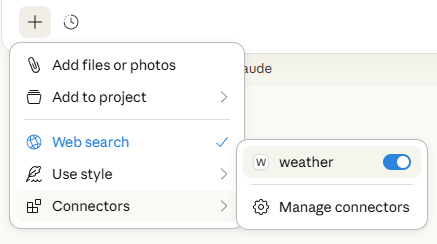
Let’s make sure Claude for Desktop is picking up the two tools we’ve exposed in ourweather server. You can do this by looking for the “Add files, connectors, and more /” 

weather servers listed:
- What’s the weather in Sacramento?
- What are the active weather alerts in Texas?
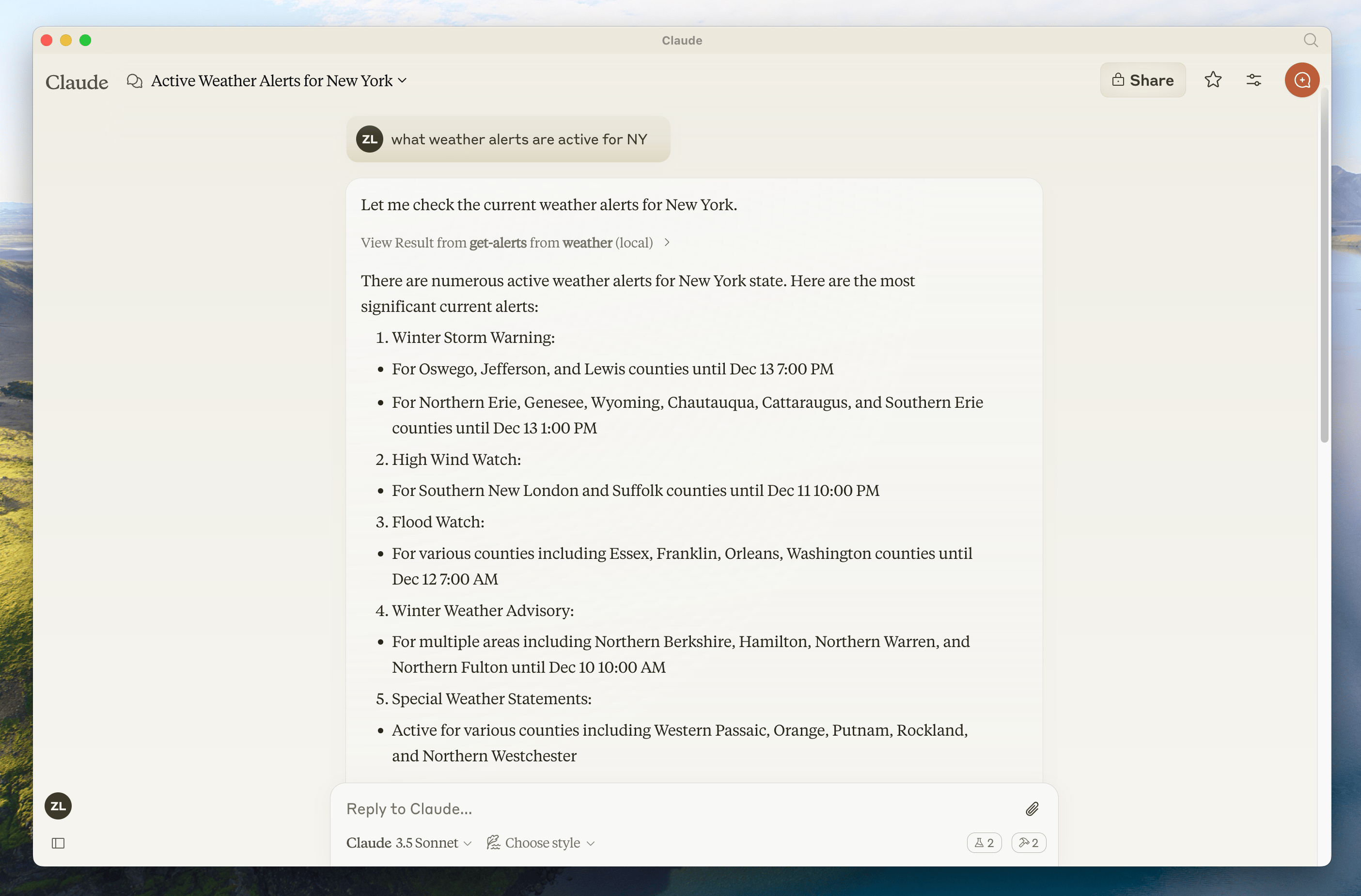
Since this is the US National Weather service, the queries will only work for US locations.
What’s happening under the hood
When you ask a question:- The client sends your question to Claude
- Claude analyzes the available tools and decides which one(s) to use
- The client executes the chosen tool(s) through the MCP server
- The results are sent back to Claude
- Claude formulates a natural language response
- The response is displayed to you!
Troubleshooting
Claude for Desktop Integration Issues
Claude for Desktop Integration Issues
Getting logs from Claude for DesktopClaude.app logging related to MCP is written to log files in Server not showing up in ClaudeTool calls failing silentlyIf Claude attempts to use the tools but they fail:
~/Library/Logs/Claude (macOS) or ~/.config/Claude/logs/ (Linux):mcp.logwill contain general logging about MCP connections and connection failures.- Files named
mcp-server-SERVERNAME.logwill contain the stderr output from the named server. Stdio servers may use stderr for all their logging, so these files are not limited to errors.
macOS
# Check Claude's logs for errors
tail -n 20 -f ~/Library/Logs/Claude/mcp*.log
Linux
# Check Claude's logs for errors
tail -n 20 -f ~/.config/Claude/logs/mcp*.log
- Check your
claude_desktop_config.jsonfile syntax - Make sure the path to your project is absolute and not relative
- Restart Claude for Desktop completely
To properly restart Claude for Desktop, you must fully quit the application:
- Windows: Right-click the Claude icon in the system tray (which may be hidden in the “hidden icons” menu) and select “Quit” or “Exit”.
- macOS: Use Cmd+Q or select “Quit Claude” from the menu bar.
- Linux: Right-click the Claude icon in the system tray and select “Quit”, or run
pkill -f claude-desktopfrom a terminal.
- Check Claude’s logs for errors
- Verify your server builds and runs without errors
- Try restarting Claude for Desktop
Weather API Issues
Weather API Issues
Error: Failed to retrieve grid point dataThis usually means either:
- The coordinates are outside the US
- The NWS API is having issues
- You’re being rate limited
- Verify you’re using US coordinates
- Add a small delay between requests
- Check the NWS API status page
For more advanced troubleshooting, check out our guide on Debugging MCP
Next steps
Building a client
Learn how to build your own MCP client that can connect to your server
Example servers
Check out our gallery of official MCP servers and implementations
Debugging Guide
Learn how to effectively debug MCP servers and integrations
Build with Agent Skills
Use agent skills to guide AI coding assistants through server design