> ## Documentation Index
> Fetch the complete documentation index at: https://mcp.zhcndoc.com/llms.txt
> Use this file to discover all available pages before exploring further.
# 调试
> 调试模型上下文协议(MCP)集成的综合指南
在开发 MCP 服务器或将其与应用程序集成时,有效的调试至关重要。本指南介绍 MCP 生态系统中可用的调试工具和方法。
## 调试工具概览
MCP 提供了多个不同层级的调试工具:
1. **[MCP Inspector](/docs/2025-11-25/tools/inspector)**:交互式、与传输无关的
测试 UI。可连接到 stdio 或 Streamable HTTP 服务器,调用
[tools](/specification/2025-11-25/server/tools)、
[prompts](/specification/2025-11-25/server/prompts) 和
[resources](/specification/2025-11-25/server/resources),并观察
通知流。这应该是你的第一站。
2. **服务器日志**:通过 stderr(stdio 传输)输出结构化日志,或通过
[`notifications/message`](/specification/2025-11-25/server/utilities/logging#log-message-notifications)
(所有传输)输出。
3. **客户端开发者工具**:大多数 MCP 客户端都会暴露日志和连接
状态。下面请参见 [Claude Desktop 中的调试](#debugging-in-claude-desktop)
作为一个示例,或查阅你所使用客户端的文档。
## 实现日志记录
### 服务端日志记录
当构建使用本地
[stdio 传输](/specification/2025-11-25/basic/transports#stdio) 的服务器时,所有记录到 stderr(标准错误)的消息都会被宿主应用程序自动捕获。
本地 MCP 服务器不应将消息记录到 stdout(标准输出),因为这会干扰协议运行。
对于使用
[可流式 HTTP 传输](/specification/2025-11-25/basic/transports#streamable-http) 的服务器,客户端不会捕获 stderr。请使用下面的日志消息通知、你自己的服务端日志聚合,或标准 HTTP 工具(curl、浏览器 DevTools Network 面板)来检查请求、
[`Mcp-Session-Id` 头](/specification/2025-11-25/basic/transports#session-management)
以及 SSE 流。
对于所有[传输](/specification/2025-11-25/basic/transports),你还可以通过发送日志消息通知向客户端提供日志记录:
```python Python theme={null}
@server.tool()
async def my_tool(ctx: Context) -> str:
await ctx.session.send_log_message(
level="info",
data="服务器已成功启动",
)
return "done"
```
```typescript TypeScript theme={null}
await server.sendLoggingMessage({
level: "info",
data: "服务器已成功启动",
});
```
MCP 定义了八个
[RFC 5424 严重级别](/specification/2025-11-25/server/utilities/logging#log-levels)
(从 `debug` 到 `emergency`)。客户端可以在运行时通过
[`logging/setLevel`](/specification/2025-11-25/server/utilities/logging#setting-log-level)
请求调整最低级别。
需要记录的重要事件:
* 初始化步骤
* 资源访问
* 工具执行
* 错误情况
* 性能指标
## 常见问题
下面的示例使用 Claude Desktop 的
[`claude_desktop_config.json`](/docs/2025-11-25/develop/connect-local-servers);同样的
原则也适用于任何基于 stdio 的 MCP 客户端。
### 工作目录
当 MCP 客户端启动一个 stdio 服务器时:
* 通过客户端配置启动的服务器,其工作目录可能是
未定义的(如 macOS 上的 `/`),因为客户端可能从
任何位置启动
* 始终在配置和 `.env` 文件中使用绝对路径,以确保
可靠运行
* 对于通过命令行直接测试服务器,工作目录将是
你运行命令时所在的位置
例如在 `claude_desktop_config.json` 中,使用:
```json theme={null}
{
"mcpServers": {
"filesystem": {
"command": "npx",
"args": [
"-y",
"@modelcontextprotocol/server-filesystem",
"/Users/username/data"
]
}
}
}
```
而不是使用类似 `./data` 这样的相对路径
### 环境变量
通过 stdio 启动的 MCP 服务器只会自动继承
一部分有限的环境变量(具体集合依赖于平台)。
要覆盖默认变量或提供你自己的变量,可以在
`claude_desktop_config.json` 中指定一个 `env` 键:
```json theme={null}
{
"mcpServers": {
"myserver": {
"command": "mcp-server-myapp",
"env": {
"MYAPP_API_KEY": "some_key"
}
}
}
}
```
### 服务器初始化
常见的初始化问题:
1. **路径问题**
* 服务器可执行文件路径不正确
* 缺少所需文件
* 权限问题
* 尝试为 `command` 使用绝对路径
2. **配置错误**
* JSON 语法无效
* 缺少必需字段
* 类型不匹配
3. **环境问题**
* 缺少环境变量
* 变量值不正确
* 权限限制
### 连接问题
当服务器连接失败时:
1. 检查客户端日志
2. 验证服务器进程正在运行
3. 使用 [Inspector](/docs/2025-11-25/tools/inspector) 独立测试
4. 验证
[协议兼容性](/specification/2025-11-25/basic/lifecycle#version-negotiation)
5. 检查
[能力协商](/specification/2025-11-25/basic/lifecycle#capability-negotiation):
错误 [`-32602`](/specification/2025-11-25/basic/lifecycle#error-handling) 是
标准 JSON-RPC 的“参数无效”代码,并且会在许多
场景中返回。一个常见原因是服务器向
未声明该能力的客户端发送
[sampling](/specification/2025-11-25/client/sampling) 或
[elicitation](/specification/2025-11-25/client/elicitation) 请求。请检查
[`initialize` 交互](/specification/2025-11-25/basic/lifecycle#initialization),
以确认双方都声明了你期望的内容
## 在 Claude Desktop 中进行调试
Claude Desktop 是众多 MCP 客户端之一。它可用于
macOS 和 Windows。
### 检查服务器状态
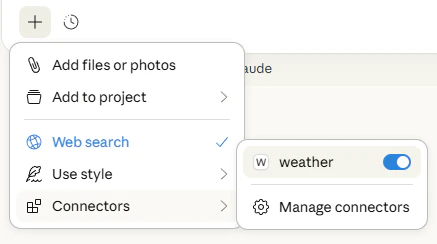
点击聊天输入框中的“添加文件、连接器等”加号图标,然后
将鼠标悬停在 **连接器** 菜单上,以查看已连接的服务器和可用工具。
 ### 查看日志
日志文件写入到:
* macOS: `~/Library/Logs/Claude`
* Windows: `%APPDATA%\Claude\logs`
```bash macOS theme={null}
tail -n 20 -F ~/Library/Logs/Claude/mcp*.log
```
```powershell Windows theme={null}
type "$env:AppData\Claude\logs\mcp*.log"
```
日志会记录:
* 服务器连接事件
* 配置问题
* 运行时错误
* 消息交互
### 使用 Chrome DevTools
在 Claude Desktop 中访问 Chrome 的开发者工具,以调查
客户端错误:
1. 创建一个 `developer_settings.json` 文件,并将 `allowDevTools` 设置为 true:
```bash macOS theme={null}
echo '{"allowDevTools": true}' > ~/Library/Application\ Support/Claude/developer_settings.json
```
```powershell Windows theme={null}
'{"allowDevTools": true}' | Set-Content "$env:AppData\Claude\developer_settings.json"
```
2. 打开 DevTools:`Command-Option-I`(macOS)或 `Ctrl+Alt+I`(Windows)
注意:你会看到两个 DevTools 窗口:
* 主内容窗口
* 应用标题栏窗口
使用 Console 面板检查客户端错误。
使用 Network 面板检查:
* 消息负载
* 连接时序
## 调试工作流
### 开发周期
1. 初始开发
* 使用 [Inspector](/docs/2025-11-25/tools/inspector) 进行基本测试
* 实现核心功能
* 添加日志点
2. 集成测试
* 在你的目标 MCP 客户端中进行测试
* 监控日志
* 检查错误处理
### 测试更改
要高效地测试更改:
* **配置更改**:重启 MCP 客户端
* **服务器代码更改**:重启客户端(对于 Claude Desktop,请完全退出
并重新打开;仅关闭窗口是不够的)
* **快速迭代**:在开发过程中使用 [Inspector](/docs/2025-11-25/tools/inspector)
## 最佳实践
### 日志策略
1. **结构化日志**
* 使用一致的格式
* 包含上下文
* 添加时间戳
* 跟踪请求 ID
2. **错误处理**
* 记录堆栈跟踪
* 包含错误上下文
* 跟踪错误模式
* 监控恢复情况
3. **性能跟踪**
* 记录操作耗时
* 监控资源使用情况
* 跟踪消息大小
* 测量延迟
### 安全注意事项
在调试时:
1. **敏感数据**
* 清理日志
* 保护凭据
* 屏蔽个人信息
2. **访问控制**
* 验证权限
* 检查身份验证
* 监控访问模式
有关 MCP 攻击向量和缓解措施的完整说明,请参见
[安全最佳实践](/docs/2025-11-25/tutorials/security/security_best_practices)。
## 获取帮助
当遇到问题时:
1. **第一步**
* 检查服务器日志
* 使用 [Inspector](/docs/2025-11-25/tools/inspector) 进行测试
* 检查配置
* 验证环境
2. **支持渠道**
* [GitHub issues](https://github.com/modelcontextprotocol/modelcontextprotocol/issues)
* [GitHub discussions](https://github.com/modelcontextprotocol/modelcontextprotocol/discussions)
3. **提供信息**
* 日志摘录
* 配置文件
* 复现步骤
* 环境详情
## 后续步骤
学习如何使用 MCP Inspector
从零开始逐步构建服务器
claude\_desktop\_config.json 的完整参考与故障排查
### 查看日志
日志文件写入到:
* macOS: `~/Library/Logs/Claude`
* Windows: `%APPDATA%\Claude\logs`
```bash macOS theme={null}
tail -n 20 -F ~/Library/Logs/Claude/mcp*.log
```
```powershell Windows theme={null}
type "$env:AppData\Claude\logs\mcp*.log"
```
日志会记录:
* 服务器连接事件
* 配置问题
* 运行时错误
* 消息交互
### 使用 Chrome DevTools
在 Claude Desktop 中访问 Chrome 的开发者工具,以调查
客户端错误:
1. 创建一个 `developer_settings.json` 文件,并将 `allowDevTools` 设置为 true:
```bash macOS theme={null}
echo '{"allowDevTools": true}' > ~/Library/Application\ Support/Claude/developer_settings.json
```
```powershell Windows theme={null}
'{"allowDevTools": true}' | Set-Content "$env:AppData\Claude\developer_settings.json"
```
2. 打开 DevTools:`Command-Option-I`(macOS)或 `Ctrl+Alt+I`(Windows)
注意:你会看到两个 DevTools 窗口:
* 主内容窗口
* 应用标题栏窗口
使用 Console 面板检查客户端错误。
使用 Network 面板检查:
* 消息负载
* 连接时序
## 调试工作流
### 开发周期
1. 初始开发
* 使用 [Inspector](/docs/2025-11-25/tools/inspector) 进行基本测试
* 实现核心功能
* 添加日志点
2. 集成测试
* 在你的目标 MCP 客户端中进行测试
* 监控日志
* 检查错误处理
### 测试更改
要高效地测试更改:
* **配置更改**:重启 MCP 客户端
* **服务器代码更改**:重启客户端(对于 Claude Desktop,请完全退出
并重新打开;仅关闭窗口是不够的)
* **快速迭代**:在开发过程中使用 [Inspector](/docs/2025-11-25/tools/inspector)
## 最佳实践
### 日志策略
1. **结构化日志**
* 使用一致的格式
* 包含上下文
* 添加时间戳
* 跟踪请求 ID
2. **错误处理**
* 记录堆栈跟踪
* 包含错误上下文
* 跟踪错误模式
* 监控恢复情况
3. **性能跟踪**
* 记录操作耗时
* 监控资源使用情况
* 跟踪消息大小
* 测量延迟
### 安全注意事项
在调试时:
1. **敏感数据**
* 清理日志
* 保护凭据
* 屏蔽个人信息
2. **访问控制**
* 验证权限
* 检查身份验证
* 监控访问模式
有关 MCP 攻击向量和缓解措施的完整说明,请参见
[安全最佳实践](/docs/2025-11-25/tutorials/security/security_best_practices)。
## 获取帮助
当遇到问题时:
1. **第一步**
* 检查服务器日志
* 使用 [Inspector](/docs/2025-11-25/tools/inspector) 进行测试
* 检查配置
* 验证环境
2. **支持渠道**
* [GitHub issues](https://github.com/modelcontextprotocol/modelcontextprotocol/issues)
* [GitHub discussions](https://github.com/modelcontextprotocol/modelcontextprotocol/discussions)
3. **提供信息**
* 日志摘录
* 配置文件
* 复现步骤
* 环境详情
## 后续步骤
学习如何使用 MCP Inspector
从零开始逐步构建服务器
claude\_desktop\_config.json 的完整参考与故障排查